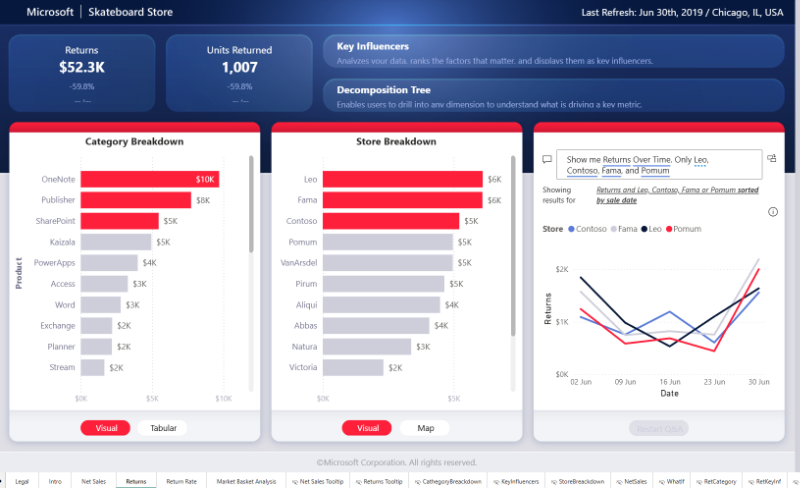
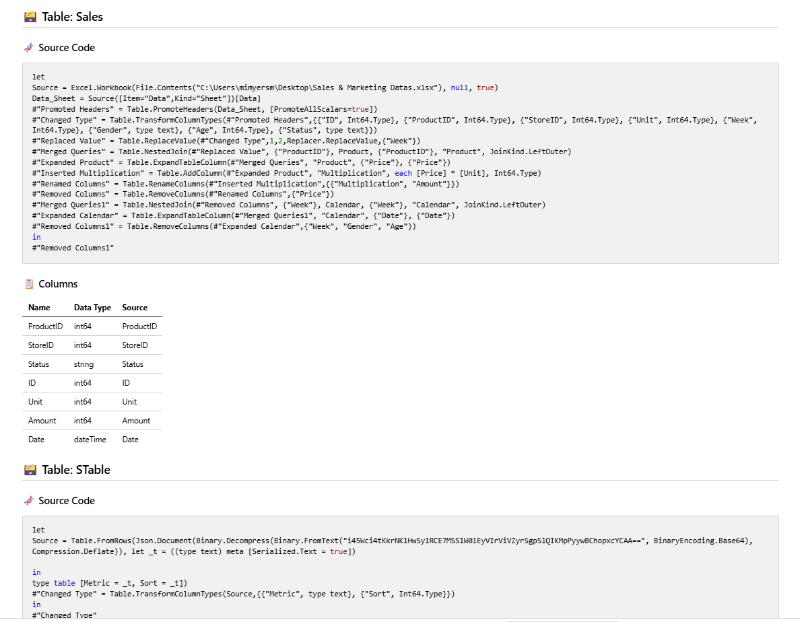
Turn your Power BI projects into clean, structured Markdown. pbi2md extracts tables, measures, relationships, visuals, SQL, and DAX — and builds a full table of contents and ER diagram automatically. The document created is ready for repos, wikis,and handover packs.
Drag and Drop your (.zip) file below to convert it to Markdown documentation
Login to convert your PBIP project and download the Markdown report.
Login to ContinueChoose the plan that fits your workflow. Switch between monthly and yearly billing any time.
Convert your Power BI projects to markdown in three simple steps
Upload your Power BI project (.zip) file. We support files up to 10 MB.
Our system extracts all reports, data models, and metadata from your PBIP project.
Get your comprehensive markdown documentation automatically downloaded to your device.
Everything you need to document your Power BI projects
Convert your PBIP projects to markdown in seconds. No waiting, no delays.
Get detailed markdown reports including reports, data models, measures, relationships and code formatting for better readability.
Markdown format is perfect for Git and version control systems. Track changes easily.
Your files are processed securely and never stored. Privacy is our priority.
Integrate with your workflow using our REST API. Automate your conversions.
Access from any device. Web-based tool that works on desktop, tablet, and mobile.
Watch quick tutorials to see how easy it is to convert your Power BI projects to Markdown
See how quickly you can turn a zipped PBIP project into Markdown documentation
Step-by-step walkthrough of the entire conversion process
Everything you need to know about generating a Markdown file from your Power BI project.
A PBIP (Power BI Project) file is the folder‑based version of a Power BI report. Instead of storing everything inside a single PBIX file, Power BI splits the report into separate, readable files—datasets, model metadata, report layout, and more. This structure was introduced to make version control, collaboration, and CI/CD workflows much easier. pbi2md converts these files into clean, readable Markdown, including tables, measures, report page metadata, syntax‑highlighted SQL and DAX, an ER diagram, and a structured table of contents. The result is a Markdown snapshot of your entire Power BI project—ideal for repos, wikis, handover packs, and version‑controlled documentation.
You can create a PBIP by saving a PBIX using the File -> Save As option in Power BI Desktop. You need to save the file as a Power BI Project files type, which generates a PBIP folder containing all the project files.
A Markdown file is a lightweight text format used for writing clean,
readable documentation that can be easily converted into HTML, PDFs, or wiki pages.
It uses simple symbols (like # for headings or - for bullet points)
instead of complex formatting tools, which makes it ideal for version control systems such as Git.
Because Markdown is plain text, it’s perfect for code reviews, documentation repositories,
handover packs, and any workflow where clarity and traceability matter. pbi2md
generates Markdown so your Power BI project documentation is easy to read,
easy to share, and easy to maintain.
We currently support PBIP files up to 10 MB in size. If your project is larger, ensure you have removed the cache.abf file and any images from the project folder before attempting to upload as this could contain sensitive data and will also make the file too large to upload.
Your PBIP file should be a ZIP archive containing a folder with your report name. Inside that folder, you should have
the .SemanticModel and .Report folders,
along with a .pbip file. Here's the expected structure:
This is the standard structure when you export a Power BI project from Power BI Desktop. If your ZIP file doesn't follow this structure, the conversion may fail. Make sure you're uploading the complete project folder as a ZIP file, not just individual files.
The generated Markdown file includes comprehensive documentation of your Power BI project, including report pages, visuals, data model structure, tables, relationships, measures, calculated columns, and other metadata. This gives you a complete overview of your project in a readable format.
Yes, absolutely. Your files are processed securely and are never stored on our servers. Files are processed in memory and deleted immediately after conversion. We take privacy seriously and your Power BI projects remain confidential.
Yes! We provide a REST API that you can use to automate conversions. You can integrate it into your CI/CD pipeline, documentation workflow, or any other automated process. Check out the API Keys section after logging in to get started.
Yes, creating an account is required to use the conversion service. This helps us manage usage limits, provide API access, and ensure the security of our service. Registration is free and takes just a few moments.
If a conversion fails, you'll see an error message explaining what went wrong. Common issues include invalid file format, corrupted zip files, or files that exceed the size limit. Make sure your PBIP file is a valid Power BI project archive and try again. If problems persist, contact support.
Subscriptions are billed on a monthly or yearly basis. Your subscription period starts from the purchase date and runs until the end of that billing period. If you already have an active subscription and purchase a new one (upgrade, downgrade, or renewal), the new subscription will start the day after your current subscription ends. This ensures you get the full value from your current subscription before the new one begins. The only exception is when upgrading to a yearly plan or moving from a free tier to a paid tier—these changes take effect immediately.
If you've used all your monthly conversion allowance, you can purchase a Top-Up to get additional conversions for the current calendar month. Top-ups provide extra conversions (the exact number depends on your subscription tier) and are valid until the end of the current calendar month, when your monthly limit resets. You can purchase one top-up per calendar month. The top-up price and number of additional conversions vary by tier—check your subscription details for specific pricing. Top-ups are a one-time purchase and provide immediate access to additional conversions without waiting for your next billing cycle.
To cancel your subscription please click on your account name in the Menu and choose "Settings". On the settings page find the "Manage Billing / Cancel subscription" link. Clicking on this will take you to the stripe account management page. Your account willl be marked for cancellation, but you will still be able to use the tool until the end of the subscription date.